
アンテナモニター for Starlink
Starlink のアンテナの調子を、スマホのアプリを開かずに Windows で見られるようにしました。画面の右下(通知領域)のアイコンの色で、いまつながっているか、障害物に遮られていないかが分かります。
速度や遅延のグラフ、アンテナから見た空のどこが遮られているかを表す「障害物マップ」、いま頭上を通っていく Starlink 衛星、軌道上の衛星すべてを映す地球儀まで、アイコンをクリックすれば開けます。無料です。
Microsoft Store で入手する(おすすめ。新しい版が出ると自動で更新されます)
インストーラーをダウンロードする(DishMonitor_setup.exe・約 59 MB)
ダウンロード版は、初めて実行するときに Windows の警告が出ることがあります。その場合は「詳細情報」を押すと「実行」のボタンが出ます。
Windows 10 / 11(64 ビット) 無料
できること
- アイコンの色で状態が分かる。緑はつながっていて問題なし、黄は障害物や警告あり、赤はつながっていない。マウスを乗せると、速度・遅延・障害物率が出ます。
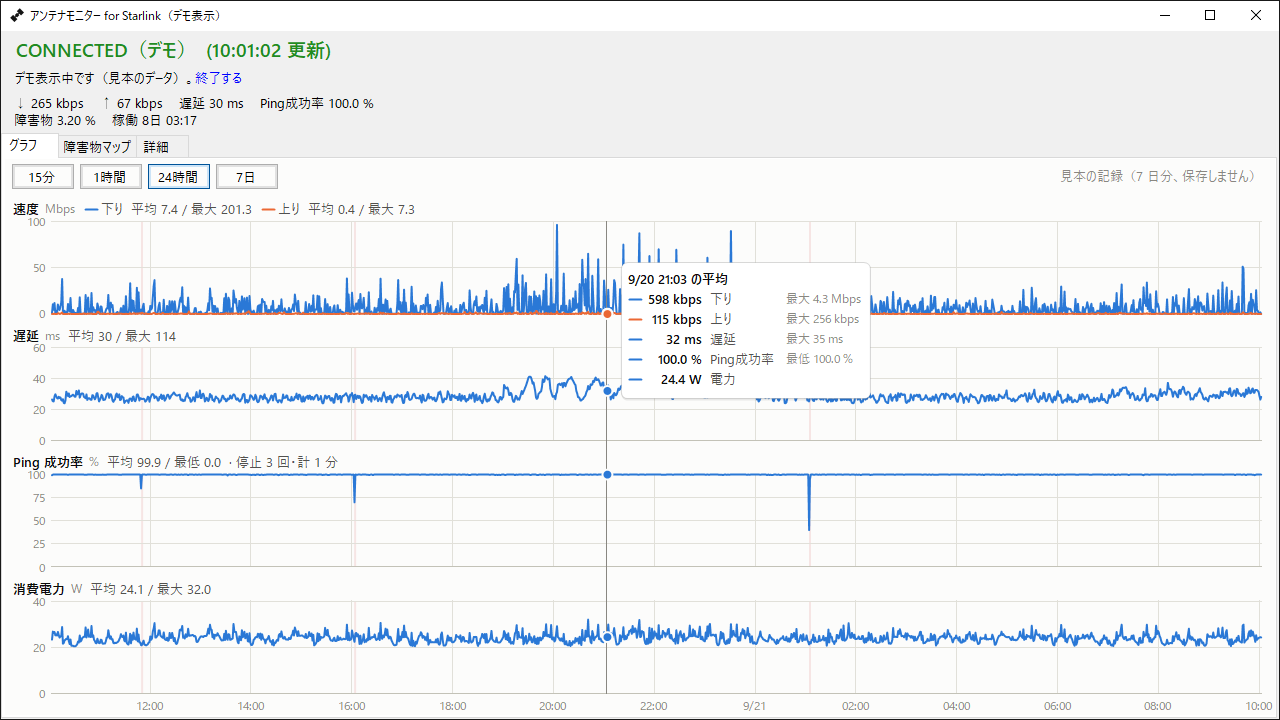
- グラフ。速度(下り・上り)・遅延・Ping 成功率・消費電力を、15 分・1 時間・24 時間・7 日で切り替えて見られます。止まっていた時間は赤い帯で出ます。アンテナ自体は直近 15 分しか記録していないので、アプリが常駐している間に 1 秒ごとのデータを PC に貯めていきます(8 日分)。
- 停止の一覧(イベント)。アンテナが記録した停止を、時刻・原因(障害物あり、衛星のサーチ、ネットワークの中断 など)・長さの一覧で見られます。ダブルクリックすると、その時刻のグラフが開きます。
- 通知。遅延が高い状態が続いたとき、短い時間に何度も止まったとき、アンテナに届かなくなったときに、Windows の通知でお知らせします。
- 日本語と英語。Windows の表示言語に合わせて切り替わります。
障害物マップと、頭上の衛星
アンテナから見た空(上が北、真ん中が真上)のうち、どこが木や建物で遮られているかを色で表します。濃い赤ほど強く遮られています。
その上に、いま頭上を通っている Starlink 衛星を白い点で重ねます。点は 1 秒ごとに動き、30 秒ぶんの尾を引きます。点にマウスを乗せると、衛星の名前と方角・高さ、その方向が遮られているかどうかが出ます。衛星が木の後ろへ回り込んでいくのが見えます。
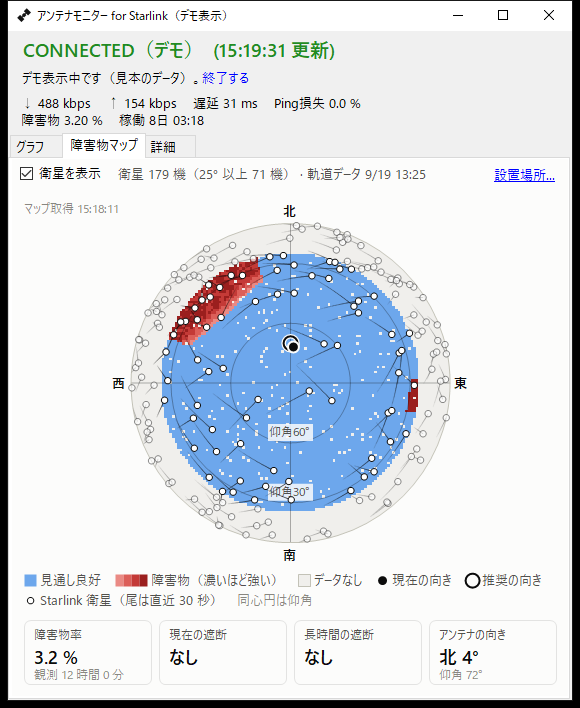
衛星の位置は、公開されている軌道データ(CelesTrak)から計算しています。表示するには、アンテナの設置場所(緯度・経度)を一度入れてください。Google マップで場所を右クリックすると出る数字を、そのまま貼り付けられます。いま接続している衛星がどれかは、アンテナから取れないため区別していません。
地球儀
軌道上の Starlink 衛星すべて(約 1 万機)の、いまの位置を地球儀の上に表示します。位置は 1 秒ごとに更新され、地球儀はゆっくり自転します。ドラッグで回したり、ホイールで拡大したりできます。設置場所を入れておくと、その場所と、頭上(仰角 25° 以上)にいる衛星が黄色で出ます。
国を選ぶと(一覧から選ぶ・名前を打つ・地球儀の上でダブルクリック)、その国を塗って輪郭を描き、正面に向けて大きくします。
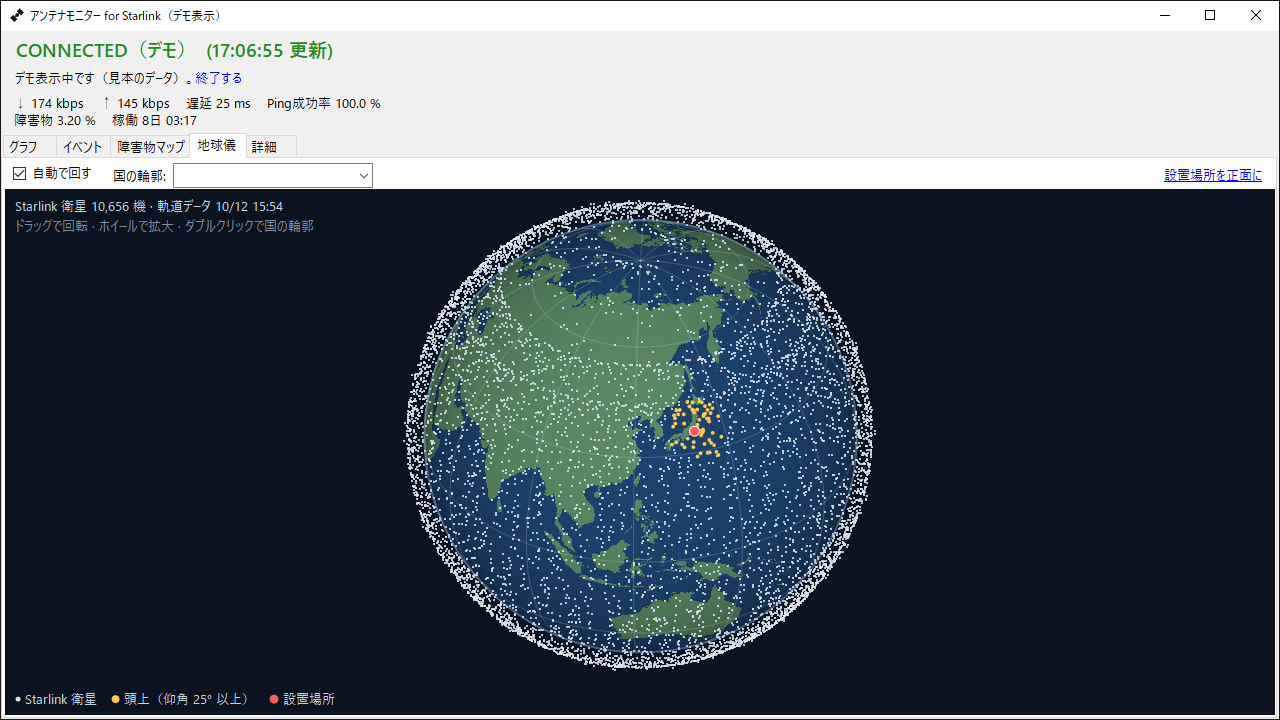
陸地と国境の形は Natural Earth のデータです。
使うのに必要なもの
- Windows 10 / 11(64 ビット)
- Starlink のアンテナと同じネットワークにつながっている PC(アンテナの 192.168.100.1 に届くこと)。Starlink 純正のルーターにつないでいれば、そのまま使えます。自前のルーターを使う場合(バイパスモード)は、192.168.100.1 への経路の設定が要ります。
- 衛星の表示には、インターネット接続(軌道データの取得)と、設置場所の入力が要ります。
アンテナが無くても試せます(デモ表示)
通知領域のアイコンを右クリックして「デモ表示(見本のデータ)」を選ぶと、見本のデータでグラフ・障害物マップ・衛星の動きを試せます。見本のデータは保存しません。
ご注意
- このアプリは SpaceX / Starlink の公式製品ではなく、SpaceX とは関係ありません。Starlink は SpaceX の商標です。
- アンテナが家庭内ネットワークに公開している、仕様が公開されていない API を読み取っています。アンテナのファームウェアの更新で動かなくなることがあります。
- 速度のグラフは「実際に流れた通信量」で、回線の空き容量ではありません。調子の良し悪しは、遅延・Ping 成功率・停止で見てください。
- 個人情報は集めません。詳しくはプライバシーポリシーをご覧ください。
更新履歴
- 2026.10.12 「地球儀」タブを追加しました。軌道上の Starlink 衛星すべての位置を地球儀で見られ、国を選ぶと輪郭を描きます。停止の一覧の原因を公式アプリと同じ言葉にし、続いている最中の停止の長さが途中までで記録される不具合を直しました
- 2026.9.23 「イベント」タブを追加しました。アンテナが記録した停止を、時刻・原因・長さの一覧で見られます(8 日分)。ダブルクリックでその時刻のグラフが開きます
- 2026.9.22 Microsoft Store で公開しました。グラフの Ping を、公式アプリと同じ「成功率」で表示するようにしました(ふだんは 100%。Ping が届かなかったときだけ下がります)
- 2026.9.19 最初の版
English: Dish Monitor for Starlink
Check your Starlink dish from Windows without opening the phone app. The color of the icon in the notification area tells you at a glance whether you are connected and whether anything is blocking the dish. Free.
- Status at a glance. Green means connected with no problems, yellow means an obstruction or warning, red means not connected. Hover over the icon for throughput, latency and obstruction.
- Graphs. Throughput, latency, ping success rate and power draw for the last 15 minutes, 1 hour, 24 hours or 7 days, with outages shown as red bands. The dish itself keeps only 15 minutes, so the app records per-second data on your PC (8 days).
- Outage list (Events). Every outage the dish recorded, with time, cause (obstructed, sky search, network interruption…) and duration. Double-click one to open the graphs at that time.
- Obstruction map and satellites overhead. See which parts of the sky are blocked by trees or buildings, with the Starlink satellites passing overhead drawn on top, moving every second. Satellite positions are computed from public orbit data (CelesTrak); enter your dish location once to show them.
- Globe. Every Starlink satellite in orbit (about 10,000) on a slowly turning globe, updated every second. Drag to spin it, use the wheel to zoom, and pick a country to outline it.
- Notifications when latency stays high, when outages are frequent, or when the dish becomes unreachable.
- Demo mode. No dish? Right-click the icon and choose “Demo mode (sample data)” to try everything with sample data.
- English and Japanese, following your Windows display language.
Requirements: Windows 10 / 11 (64-bit), and a PC on the same network as your Starlink dish (it must reach 192.168.100.1). If you use your own router in bypass mode, add a route to 192.168.100.1.
Get it from the Microsoft Store (recommended; it updates automatically), or download the installer (DishMonitor_setup.exe, about 59 MB).
This app is not an official SpaceX / Starlink product and is not affiliated with SpaceX. Starlink is a trademark of SpaceX. It reads the dish’s local API, which is not publicly documented, so a firmware update may break it. No personal information is collected; see the privacy policy.